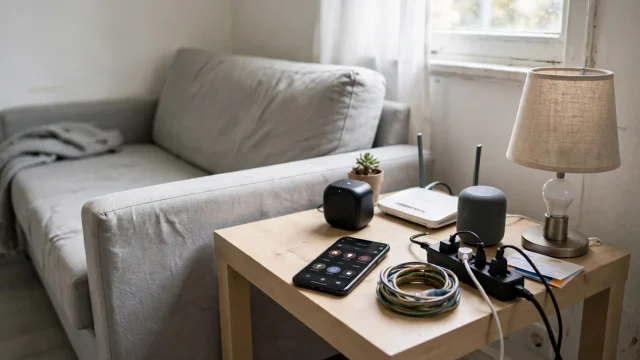
You add one more smart bulb, and suddenly three plugs, a camera and the living room lights start dropping offline. When troubleshooting connectivity issues in multi device smart home setups, the devices are rarely the problem. The network underneath them has run out of room: too many clients for the router, a crowded 2.4 GHz band, a thin mesh, or two devices fighting over one IP address.
Also read: What States Allow Plug-In Solar? 2026 State-by-State Tracker
This guide is for the scale problem. If you have one flaky plug or a basic “everything is offline” moment, start with smart home troubleshooting, which covers the first-aid checklist. This guide is the next step for troubleshooting connectivity issues multi-device smart home setups hit once they outgrow the basics. When you are troubleshooting smart home connectivity issues multiple devices share, assume you already tried a restart and the problem keeps coming back as your device count grows.
Quick answer
- Count your devices. Phones, laptops, TVs, speakers, cameras, bulbs, plugs, sensors and locks all count. Router makers disagree about limits: one popular mesh brand lists a technical maximum of 128 devices on a model but recommends about 30 for devices that use the internet heavily.
- Free fixes first: pick a non-overlapping 2.4 GHz channel (1, 6 or 11), split the bands, give devices fixed IP addresses through DHCP reservations, and move the hub away from the router.
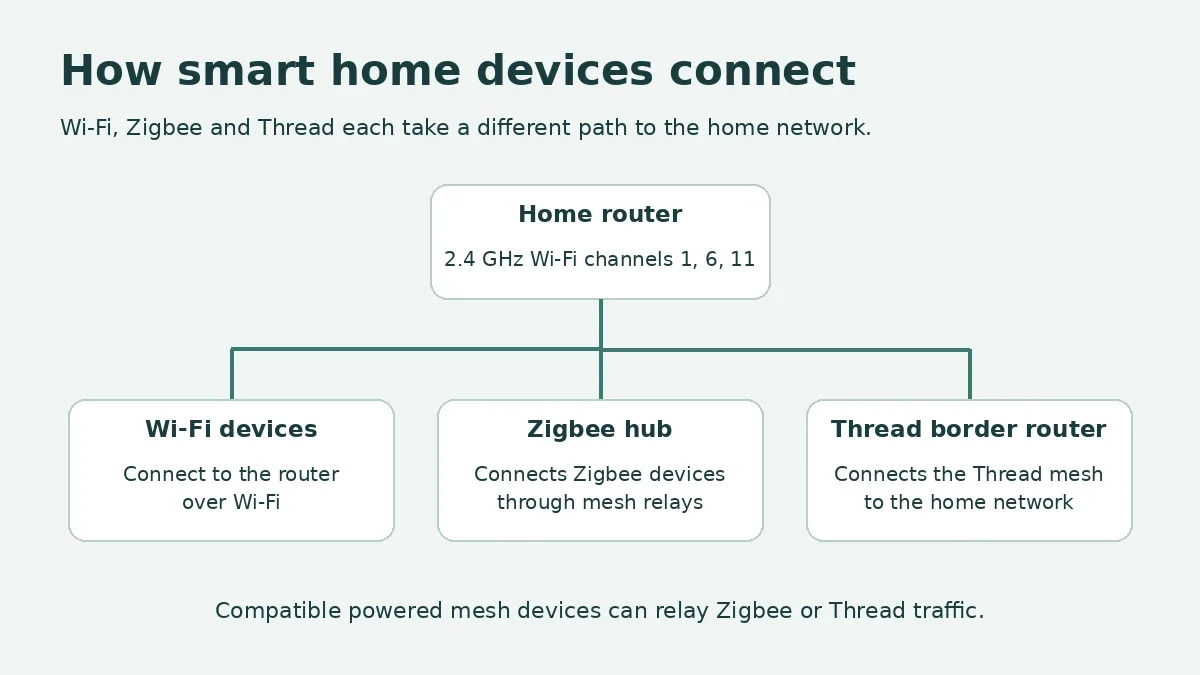
- Durable fix for a big setup: get lights, plugs and sensors off Wi-Fi by using Zigbee or Thread, and add powered devices that relay the mesh.
- In a rental, you can do almost all of this without touching the landlord’s equipment. Add your own router or mesh node behind theirs if you need to.
Troubleshooting Connectivity Issues in Multi Device Smart Home Setups – Why Devices Drop
Troubleshooting connectivity issues in multi-device smart home setups starts with knowing the pattern: problems tend to show up gradually. At 10 devices everything works. At 40 the same setup drops devices at random times. Five causes account for most of it, and each has a different fix.
1. The 2.4 GHz band is crowded. Most plugs, bulbs, sensors and cameras use 2.4 GHz Wi-Fi because it travels farther and passes through walls better than 5 GHz. The band has only three non-overlapping Wi-Fi channels in North America: 1, 6 and 11. In an apartment building, neighbors’ networks use the same ones, so busy evening hours mean more collisions.
2. The router hits a client or address limit. A router keeps a table of connected devices and hands each one a local IP address through DHCP. When that table or address pool fills, new devices may join the Wi-Fi signal but fail to communicate normally. Feit Electric’s help center says many routers have limits somewhere around 50 to 150 devices, and a router explainer from itechguides notes that limits can apply to the whole router, a single wireless network, or a single radio. The real number depends on the hardware, so check your model’s specs.
3. Wi-Fi, Zigbee and Thread share the same air. All three use the 2.4 GHz band. They coexist well when channels are planned, and badly when they are not.
4. The mesh is thin. Zigbee, Z-Wave and Thread devices form meshes where powered devices relay messages for battery devices. Too few powered relays leaves far sensors with no path back.
5. IP addresses collide. If a device is given a fixed address that falls inside the router’s automatic range, two devices can end up with the same address. Symptoms include a device that works until another one turns on.
Decision Table – Match Your Symptom to the Likely Cause
Before changing settings, write down what you see. Several devices dropping at once points to a different layer than one device dropping.
| What you see | Likely cause | Start here |
|---|---|---|
| Drops began after adding devices | Router client limit or crowded band | Count devices, then check the router’s limit and channel |
| Drops are worst in the evening | Neighbor congestion on 2.4 GHz | Pick the quietest of channels 1, 6 and 11 |
| New devices fail during setup but old ones work | DHCP pool or client limit reached | Check the DHCP range and the device list |
| Device works, then another device turns on and it fails | IP address conflict | Set DHCP reservations and remove manual addresses inside the pool |
| Zigbee or Thread sensors drop, Wi-Fi devices fine | Mesh or channel clash | Add powered relays, check channels, move the hub |
| Far sensors drop, near ones are fine | Thin mesh | Add a powered plug halfway |
| Everything drops after a power cut | Boot order | Restart modem, router, hub, then devices |
| One brand drops, others are fine | Cloud or account | Check status page, re-link account |
| Only one room drops | Coverage | Extender or mesh node in that room |
Router Device Limits – How Many Smart Devices Is Too Many?
There is no single number, and manufacturer figures are not directly comparable. A router can technically accept more devices than it handles well. For example, an explainer on router limits points out that one eero model is described as supporting up to 128 devices technically while eero recommends about 30 for devices that heavily use the internet. Other sources note that a theoretical limit of about 253 or 254 comes from the size of a typical address pool, and that default pools vary by router.
What matters more than the headline number is how active your devices are. Eighty idle sensors can be easier on a router than 15 devices streaming, gaming and uploading at once. Cameras, doorbells and speakers use real bandwidth, while plugs and bulbs mostly sit quiet and chat in small bursts.
How to check where you stand:
- Open the router’s device list and count everything. If the router is the landlord’s and locked, ask them for the count or the model number.
- Look up the model’s stated limit, keeping in mind the difference between a technical limit and a recommended one.
- Check the DHCP range. A pool of 100 addresses with 90 in use leaves little room. If you control the router, widen the pool or shorten the lease time so stale entries clear sooner.
- Watch for the pattern: the problem starts when you add devices, not when a particular device misbehaves.
If you are near the limit, the options are to move some devices off Wi-Fi, add a router or mesh system rated for more clients, or run a second network for smart gadgets. If the router belongs to your landlord and you cannot change it, adding your own router or mesh behind it is the main fix. Your hub should plug into your equipment, not the landlord’s.
Troubleshooting Smart Home Wireless Connectivity Issues – Channels and Interference
Channel planning is the cheapest large win. It costs nothing, and it is often the difference between a quiet network and a flaky one.
Wi-Fi channels
Set the 2.4 GHz channel manually to 1, 6 or 11, and pick the one your neighbors use least. Many router apps and free Wi-Fi analyzer apps show a scan. Avoid a 40 MHz channel width on 2.4 GHz, since Snap One’s Araknis guidance recommends against it. If your router has “auto” channel selection, it can hop to a crowded channel and cause fresh dropouts.
Zigbee and Thread channels
Zigbee and Thread (both based on the 802.15.4 radio standard) run in the same 2.4 GHz band, so a Wi-Fi channel change can suddenly crowd your mesh. When Wi-Fi sits on channels 1, 6 and 11, the Zigbee channels in the gaps are 15 and 20, with 25 and 26 above Wi-Fi channel 11. Channel 25 can sit close to the edge of Wi-Fi channel 11, and many devices do not support channel 26. Zigbee channel numbers are separate from Wi-Fi’s, so Zigbee channel 11 has nothing to do with Wi-Fi channel 11.
Some Thread border routers cannot change their channel. One practical guide notes that Apple’s border routers typically use Thread channel 25 and that you cannot change it, so it suggests moving Wi-Fi to channel 1 to put as much space between the two as possible. Check your border router’s documentation before changing anything.
Keep radios apart
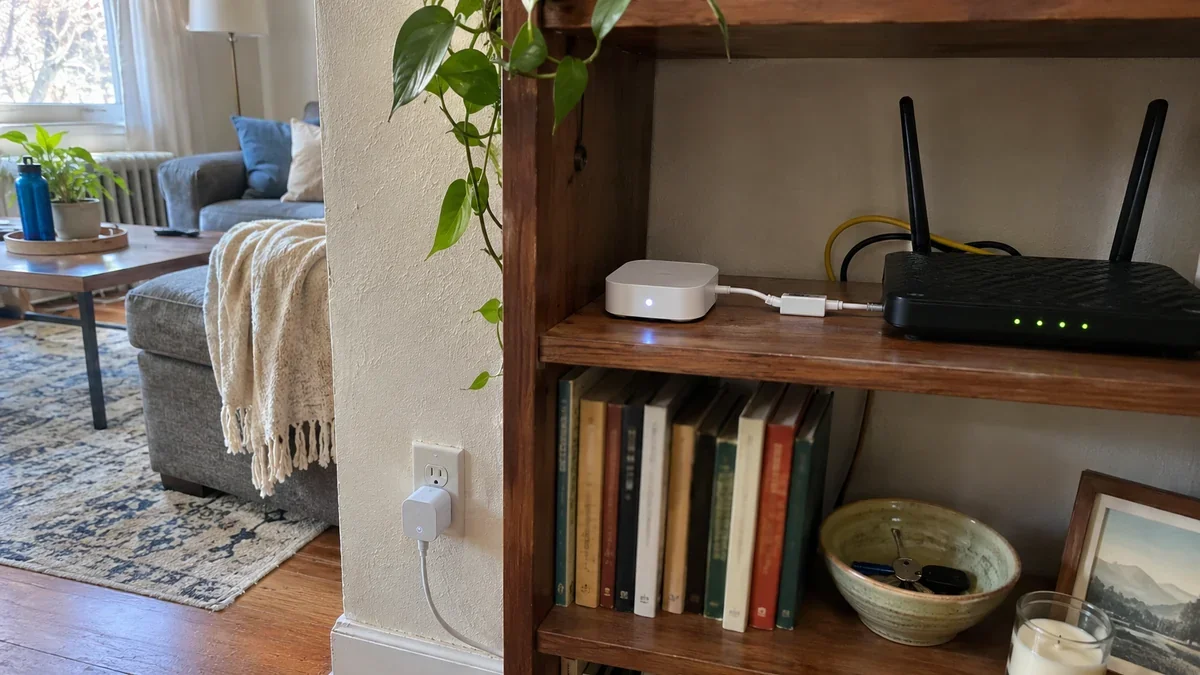
A Wi-Fi router or access point sitting next to a mesh controller can overpower it even when the channels do not overlap. Araknis guidance recommends keeping the access point at least 5 meters (about 15 feet) from the mesh controller. In a small apartment you may not manage 15 feet, but even moving a hub a few feet away from the router, and off the same shelf, can help. If a Zigbee coordinator plugs into a USB port, use a short USB extension cable to move it away from the hub or computer.
IP Address Conflicts and DHCP Reservations
An IP conflict happens when two devices believe they own the same address. It is a classic cause of “it works for an hour and then fails” and it gets more likely as you add devices and static addresses.
To prevent it:
- Use DHCP reservations instead of typing addresses by hand. A reservation tells the router to always give a specific device the same address, and the router keeps track of it.
- If you do set a manual address, choose one outside the router’s automatic pool.
- Reserve addresses for hubs, cameras and your Thread border router so they do not change after a power cut.
- Reboot after changes, and restart hubs so they pick up the new details.
If you cannot log into the router, you may not be able to do this. Ask the landlord or property manager to set reservations for your hub, or put your own router behind theirs so you control the local network.
Wi-Fi, Zigbee, Thread and Z-Wave – Which Radio for Which Device?
Renters cannot pick their walls or their neighbors, but they can pick the radio their devices use. In a setup with many devices, that choice decides how often things disconnect.
| Protocol | Good for | Strength in a rental | Watch out for |
|---|---|---|---|
| Wi-Fi (2.4 GHz) | Cameras, speakers, some plugs | No hub needed | Crowded band and the router’s client limit |
| Zigbee | Bulbs, plugs, sensors, switches | Mesh relays fix dead zones, low power use | Shares 2.4 GHz, needs a hub or coordinator |
| Thread (used by Matter) | Sensors, locks, newer plugs and bulbs | Self-healing mesh with several border routers possible | Needs at least one border router and enough powered devices |
| Z-Wave | Locks, sensors, switches | Runs on a sub-GHz band in the US, so it does not compete with Wi-Fi | Needs a hub, and device choice is smaller |
A sensible split for a rental with many devices: keep cameras and speakers on Wi-Fi, move bulbs, plugs and sensors to Zigbee or Thread, and use Z-Wave for a lock if you have one. Matter can run over Wi-Fi, Thread or Ethernet, so check which radio a Matter device uses before assuming it will reduce Wi-Fi load.
Hub Placement and Mesh Health
A mesh is only as strong as its powered members. Battery sensors sleep to save power, so they cannot relay for others. Powered devices such as plugs, switches and wired bulbs can.
- Add powered relays where the mesh is thin. Homey’s Thread troubleshooting guide notes that devices at the edge of a home dropping first, or reliability changing when a certain plug or lamp is switched off, point to too few powered Thread devices. One or two well-placed powered devices between the hub and the trouble spot often stabilize things.
- Do not switch off relays. A smart plug or bulb that also routes mesh traffic should stay powered, since turning it off removes a path for other devices.
- Use Ethernet for border routers if you can. One Thread guide advises connecting a border router by Ethernet where possible, because a border router on Wi-Fi inherits Wi-Fi’s quality problems.
- Expect growing pains when commissioning many battery devices at once. One Home Assistant user report described 25 battery devices commissioning without trouble and 50 starting to drop out during setup, with advice to add mains-powered routers. That is anecdotal, so treat it as a hint, not a rule.
- Place the hub centrally and in the open, at head height or higher, away from metal cabinets, microwave ovens and the router.
Step-by-Step – Fix a Crowded Multi-Device Smart Home
Do these in order. Buy nothing until you have finished the first five.
- Take a snapshot. Count devices, note the router model and write down which ones drop and when. This is your baseline.
- Restart in order. Modem and router first, then hubs and border routers, then devices. See smart home troubleshooting for the full routine.
- Split the bands, giving the 2.4 GHz network a separate name from 5 GHz, so smart devices cannot be steered to a band they do not support.
- Set the 2.4 GHz channel manually to the quietest of 1, 6 or 11 and avoid a 40 MHz width.
- Set DHCP reservations for hubs and cameras, and clear any manual addresses inside the pool.
- Separate radios. Move the hub off the router’s shelf, use a USB extension for a Zigbee or Thread stick, and avoid conflicting channels.
- Add powered relays to thin parts of a Zigbee or Thread mesh.
- Offload devices from Wi-Fi. Move bulbs, plugs and sensors to Zigbee or Thread, one room at a time.
- Add capacity only if needed. If the router is at its limit, add a mesh system or a second router, placed behind the landlord’s modem if necessary.
What Fixing a Multi-Device Smart Home Costs
Most fixes are free. The ranges below are typical street prices for this type of gear, and they shift with sales, so confirm live prices before buying.
| Fix | Typical cost | When it makes sense |
|---|---|---|
| Channel change, band split, DHCP reservations, hub move | $0 | Always first |
| Plug-in Zigbee or Thread smart plug as a relay | Roughly $10 to $25 | A far sensor drops and the mesh is thin |
| Plug-in Wi-Fi extender | Roughly $15 to $30 | One dead room |
| Mesh Wi-Fi system (3 nodes) | Roughly $150 to $300 | Crowded router or several dead rooms |
| Small UPS for modem, router and hub | Roughly $60 to $100 | Everything drops after brief power flickers |
A quick example of how the order of spend matters. You have 45 devices and see nightly drops. Changing the channel and splitting the bands costs nothing and may fix it. If it does not, moving 15 bulbs and plugs to Zigbee costs more but reduces Wi-Fi load permanently. A mesh system adds capacity and range, but if your problem is a crowded channel, more Wi-Fi hardware alone will not fix it.
Landlord, Lease and Deposit – Doing This in a Rental
The network equipment may not be yours, and your changes should leave nothing behind.
- Your equipment, your changes. You can add a router, mesh node, hub or extender plugged into a wall outlet or placed on a shelf. When you move out, take it with you.
- Landlord’s equipment, ask first. Do not factory reset or change settings on a router you do not own. Ask for a band split, a channel change or DHCP reservations in writing, and say exactly what you need.
- Managed or shared Wi-Fi. Some buildings isolate each apartment’s devices or block new ones. Your own router behind the building’s connection usually solves it, but ask first.
- Mounting. Use shelves, plug-in units or removable adhesive strips rated for the weight. Avoid drilling a hole for an access point or running cable through walls. Tape cables along baseboards with removable clips.
- Keep a log. If the building’s Wi-Fi keeps failing, note dates, times and affected devices, and send them to the landlord by email.
Mistakes to Avoid With Many Smart Devices
- Adding more Wi-Fi gear when the problem is channel congestion. Extra routers on the same crowded channel can add noise.
- Leaving the router on automatic channel selection and letting it hop to a busy channel.
- Typing static IPs inside the DHCP pool, which can cause conflicts.
- Placing a hub next to the router, or on a shelf with other 2.4 GHz gadgets.
- Switching off plugs that act as relays and then wondering why sensors drop.
- Changing the Wi-Fi name or password without a plan. Every device must be reconnected after that.
- Commissioning dozens of battery devices at once. Add them in small batches.
Questions
Frequently asked questions.
Why do my smart devices disconnect when I add more?
Usually because the network is crowded. The 2.4 GHz band has only three non-overlapping Wi-Fi channels, the router may be near its client or address limit, or the Zigbee or Thread mesh has too few powered relays. Count your devices, check the channel and review the DHCP range.
How many smart devices can one router handle?
It depends on the hardware and how active your devices are. Manufacturers distinguish between a technical maximum and a recommended number, and the recommended number is often much lower for busy devices. Eighty mostly idle sensors can work better than 15 streaming devices.
Should I move my smart devices to Zigbee or Thread?
For bulbs, plugs and sensors in a setup with many devices, often yes. Moving them off Wi-Fi reduces load on the router and gives you mesh relays that fix dead zones. Cameras and speakers generally stay on Wi-Fi.
What Wi-Fi channel is best for smart home devices?
On 2.4 GHz, choose 1, 6 or 11, whichever your neighbors use least. If you also run Zigbee or a Thread border router, plan channels so they do not overlap, and check if your hub lets you change its channel.
Can I fix connectivity problems if the landlord controls the router?
Yes, partly. You can add your own router or mesh behind theirs, move your hub, add relays and offload devices from Wi-Fi. For band splits, channel changes or DHCP reservations on their equipment, ask the landlord in writing.
Do smart home devices need a static IP address?
Usually not. A DHCP reservation, which tells the router to always give a device the same address, is the safer way to get that stability. Manual addresses inside the router’s automatic pool can cause conflicts.
Conclusion – Your Next Step
Troubleshooting connectivity issues in multi device smart home setups comes down to capacity and planning. Count your devices, set a clean 2.4 GHz channel, reserve addresses for your hubs, keep radios apart, and add powered relays where the mesh is thin. Do the free steps today. If your problem is a single device or a simple outage, return to smart home troubleshooting. For voice assistant issues, see Alexa Device Is Unresponsive: Fixes (Plus Google Home Not Responding), and for brand-specific plug trouble, Kasa & Wemo Smart Devices Not Connecting: Fixes. If you are still planning your setup, start with Smart Home for Renters: What to Buy First (No Drilling).
Sources: Oscium and Schneider Electric guidance on Zigbee and Wi-Fi coexistence; Snap One Araknis Wi-Fi channel optimization notes; matter-smarthome.de Thread network tips; Homey Thread and Matter troubleshooting guide; Home Assistant community reports on Matter over Thread; router device-limit explainers citing eero; Feit Electric help center. Checked November 2026.